
What is Quizlet exactly? We start with flash cards. Students can make their own, or choose from millions of flash cards sets created by others. But that’s just the beginning – once you’ve got flashcards, you can use several study modes including multiple choice tests and study games. You can add images and listen to audio, and even study on the go with on of the Quizlet-compatible mobile apps.
From ‘About Quizlet‘, March 2012
Parts of this guide
Quizlet has many different functions, so there are a lot of parts to this guide. Click on any of them in this list to go straight there:
Please note: the last major update to this post was July 2016, and since then Quizlet has updated some of its functions, most notably the Space Race, and added the Quizlet Live function for teachers. Some of the screenshots may not represent the site as it is now, but a lot of the information still applies, and the links to my groups are still correct. Enjoy!
The site is very easy to use and allows you to study the vocabulary you want to learn in many different ways. You can make your own sets quickly and easily or use sets created by other people. There is a lot of variety and repetition, making it much more fun than traditional lists of vocabulary. You can also use the site to study other subjects, including everything from history to biology and much more besides.
You don’t have to sign up to use the site, but I would highly recommend it. Find out how here.
Top
How to find flashcards
To help you out, I have created groups of flashcards (‘classes’) for different levels of English learners. All of these groups contain only English, sometimes with pictures to help you understand the words.
I also have groups for:
If you want to study something different, type in a keyword related to what you want to study, for example “idioms”, and press ‘enter’ or click the magnifying glass on the right.

As you can see, there are over 5000 sets, which is quite a lot! You can also see classes with ‘idioms’ in the title.
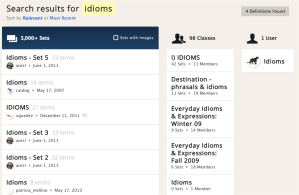
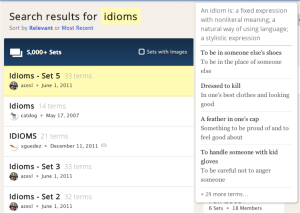
To see what’s in a set, hover over it (point your mouse at it, but don’t click). This also helps you to see whether all of the information is in English.
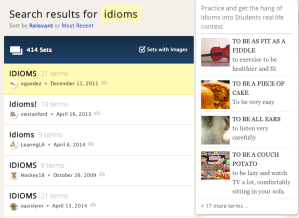
You can reduce the number of sets by choosing to show only ‘sets with images’. Now I only have 414 to choose from!
This set has English idioms with translations into Spanish:
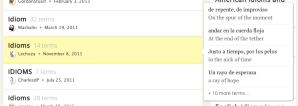
If possible, I think it’s best to study using only the language you are trying to learn, so I will use an English-only set for my example.
Top
How to use the flashcards
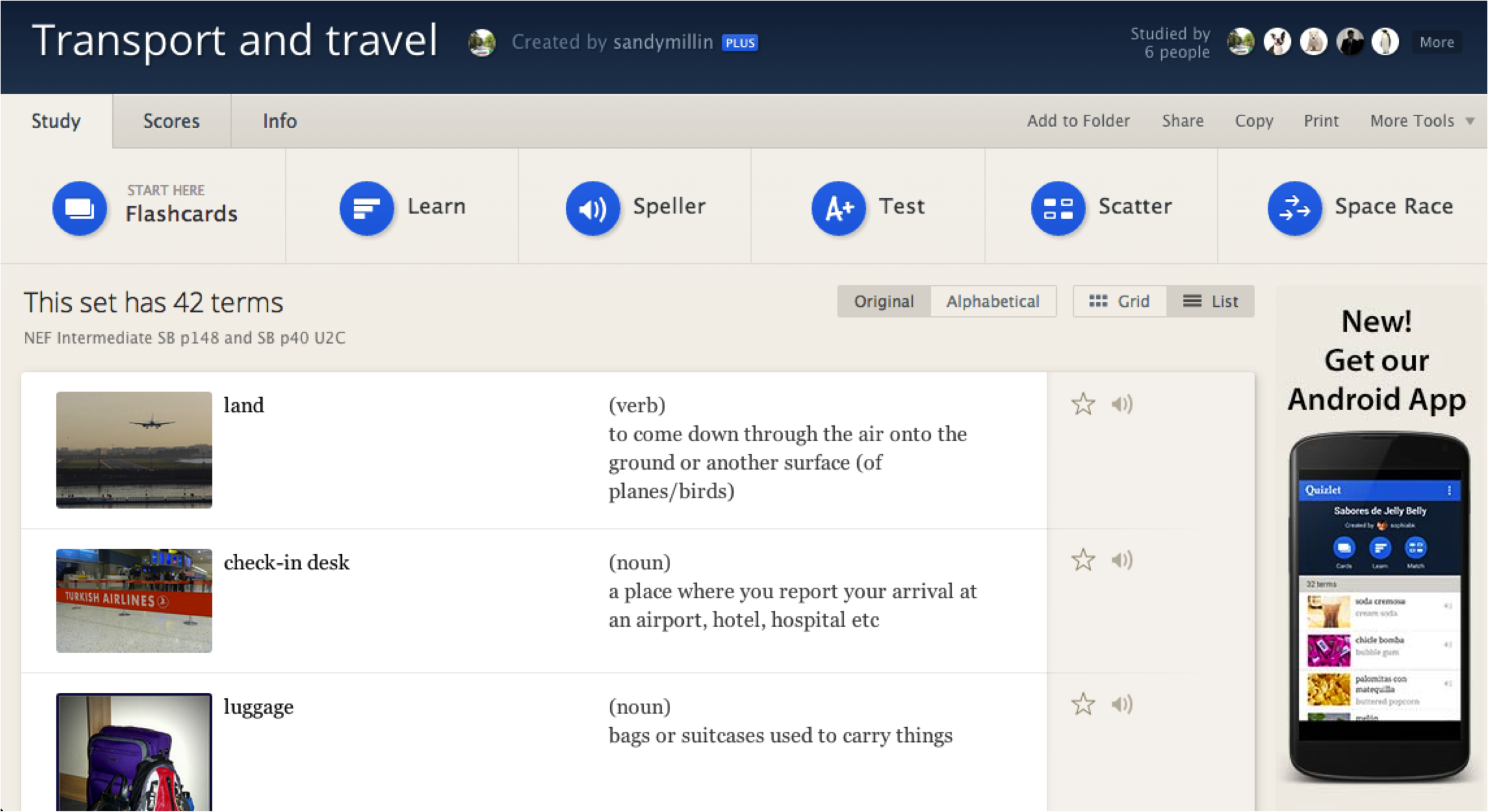
Once you have chosen the set you want to study, click on the title and it will take you to the set page. Click ‘Flashcards’ in the top left.
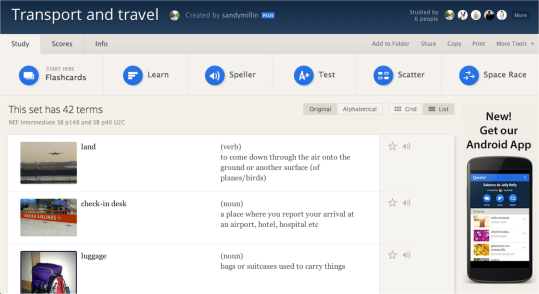
The flashcards show you the definition/picture at the moment. Click the definition to hear it.

Read the definition. Click anywhere on the card to check the word/phrase. Click the word to hear it.
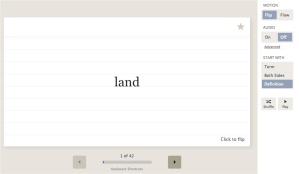
Use the buttons on the right to change what you see first: the definition/picture, term or both sides. You can also change the way you see the cards (flip = 1 card, flow = all cards), mix the order of the words (‘shuffle’) or hear the words/sentences being pronounced – it is mostly computer pronunciation, unless a teacher has recorded it, so there are sometimes problems with the stress in the word, but most of the time it is correct.

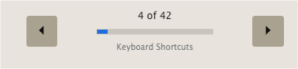
Use the arrows to move through the flashcards and familiarise yourself with the words.
If you don’t know a word, you can click the star in the top-right corner.
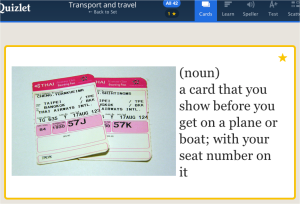
Three things happen: a star appears, you see a yellow line, and you can see how many stars you have at the top of the screen.

You can click ‘All 42’ to study all of the cards, or ‘1 *’ to only study the words which are difficult for you.
Click ‘Back to set’ to see the study page again.

Top
Print the flashcards
If you don’t want to use the computer too much, you can print the vocabulary in a few different forms. On the set page, look on the right. Click on ‘Print’.

Choose what form you want to print the words in (as a list, a table or as flashcards):

If you’re not sure, click on the different forms to preview them. When you’re ready, click ‘Open PDF’:
This will automatically open your .pdf reader (such as Adobe Acrobat or Preview). You can then print the flashcards from there as you would any other .pdf file.
Top
Practise your spellings
When you think you know most of the words, click on ‘Speller’ on the set page or at the top of the page.
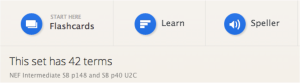

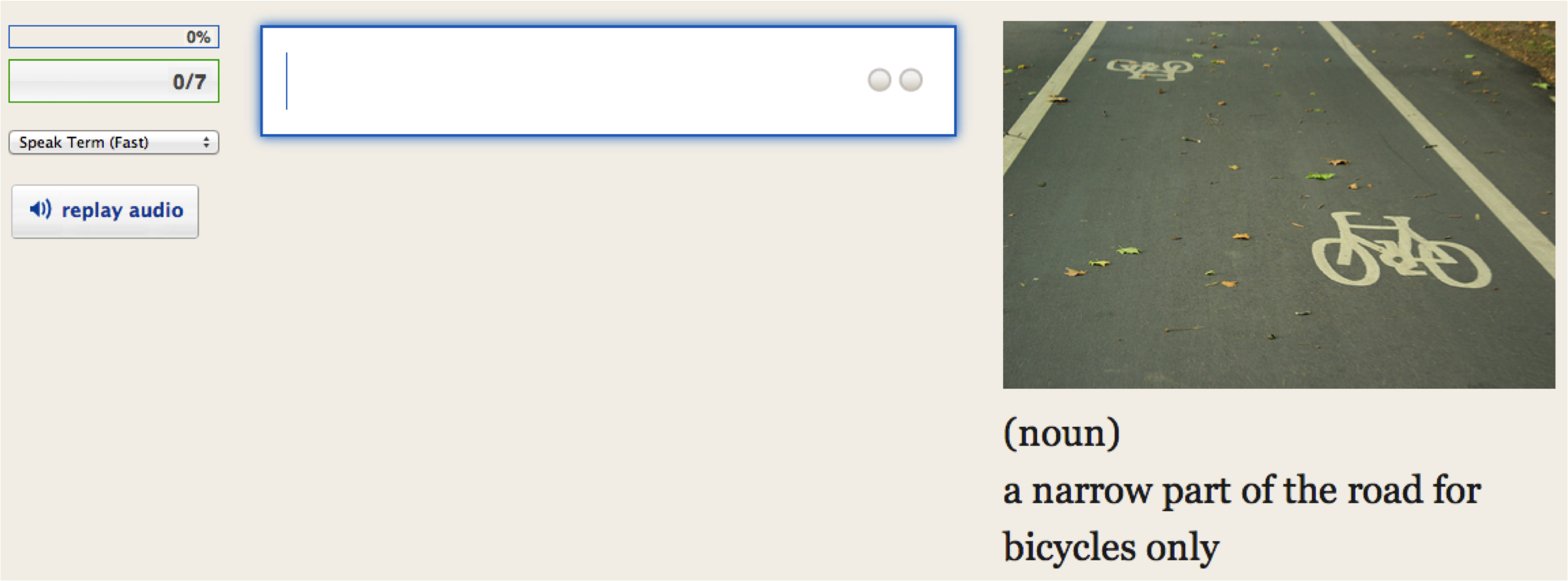
Listen to the word, look at the picture and read the definition.
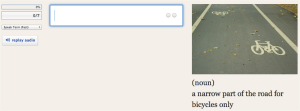
Click ‘replay audio’ on the left if you want to listen again. Above the replay button there is also a menu where you can choose whether the computer should speak fast or slowly.
Write the word/phrase in the box with the correct spelling and press enter/return on the right of your keyboard.
If you make a mistake like the one below (don’t learn this!), the computer corrects you and spells the word you didn’t know:
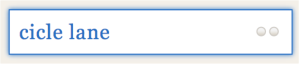

You can then try again to help you remember:

After seven words, the system shows you your progress:
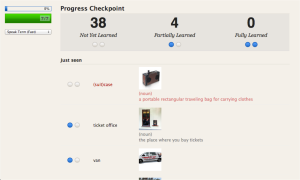
If you sign up with Quizlet, the site will remember this and you can continue from where you stopped the last time you used the site.
You can continue with this mode to keep improving your spellings, or click ‘Back to Set’.
Top
Learn the words
Click on ‘Learn’ on the set page or at the top of the page.
This mode remembers what you do and don’t know:
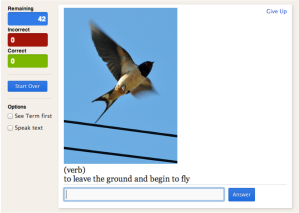
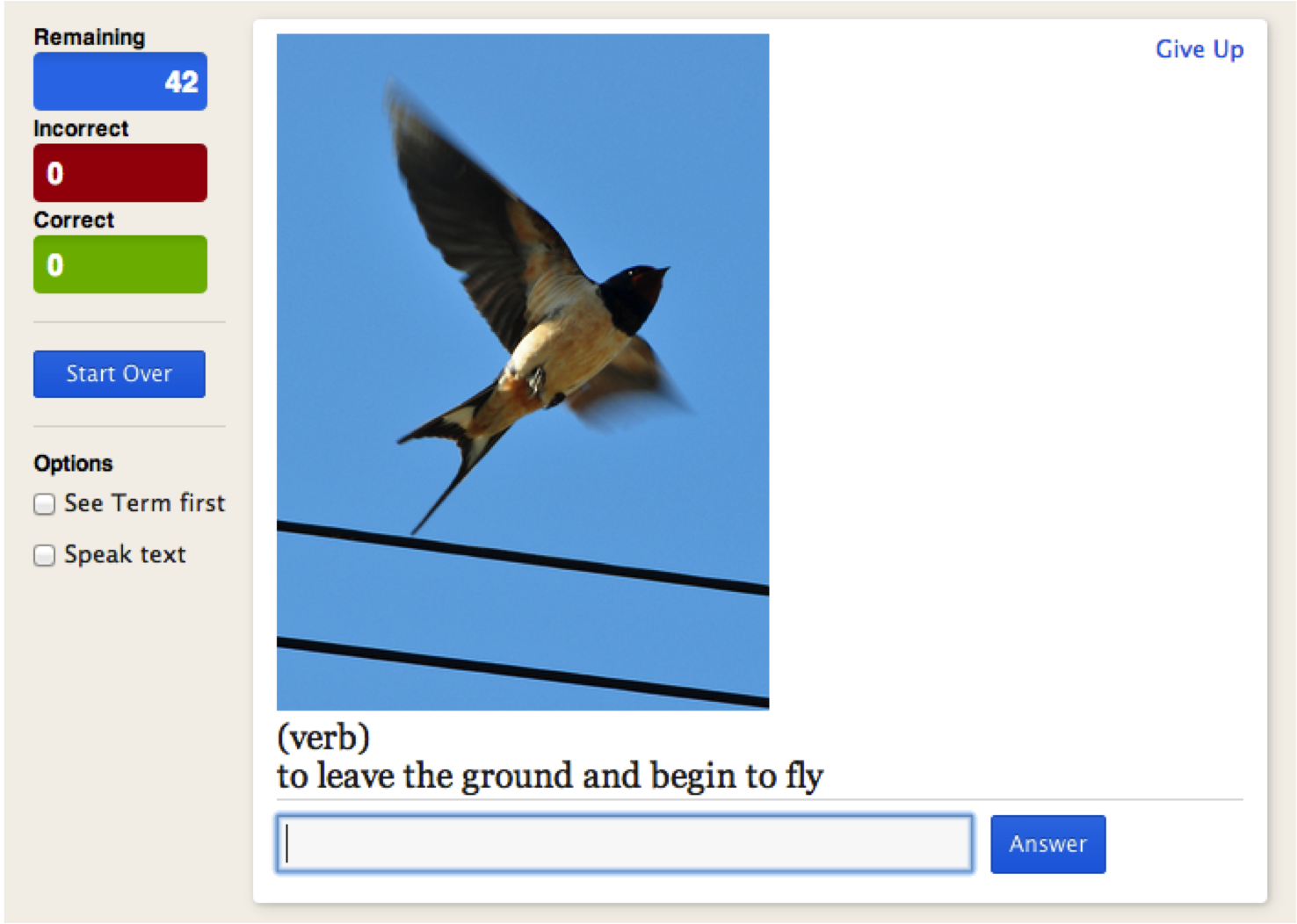
Look at the picture, read the definition and write the word/phrase. If you can’t remember it, click ‘Give Up’:

The computer marks the word as ‘Incorrect’ (the red box on the left) and gives you the answer to copy:
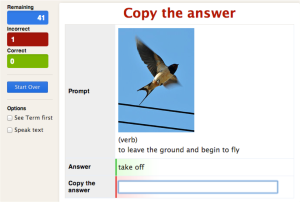
Sometimes your answer might be only a little different from the computer, so you can tell it that you were right:
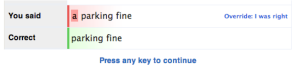
Be careful with this though: sometimes the article can’t be changed or the ‘s’ that you forgot has to be there 😉
If you sign up with Quizlet, the site will remember which words you have studied and you can continue from where you stopped the last time you used the site.
When you fancy a change, click ‘Back to Set’.
Top
Test yourself
Click on ‘Test’ on the set page, or at the top of the page.

There are four types of question in the Quizlet tests:
- written: look at the picture and write the word/phrase;
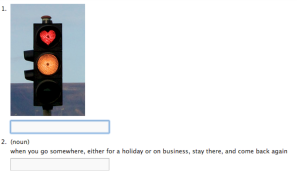
- matching: match the five words/phrases to the correct definitions/pictures by writing the letters in the boxes;
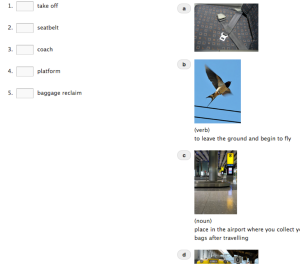
- multiple choice: read the word/phrase, then choose the correct definition/picture;
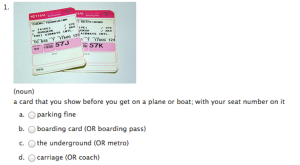
- true/false: look at the word/phrase and decide if it is the correct one for the definition/picture shown.
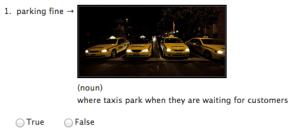
Answer all of the questions, then click ‘Check Answers’ at the bottom. The computer will give you your score:

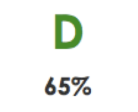
Oh dear! Looks like I need to practise more…
If you sign up with Quizlet, the site will remember your test score and you can try to do better the next time you use the site.
When you have finished, click ‘Back to Set’.
Top
Play a matching game
Click on ‘Scatter’ on the set page or at the top of the page.
Click ‘Start Game’

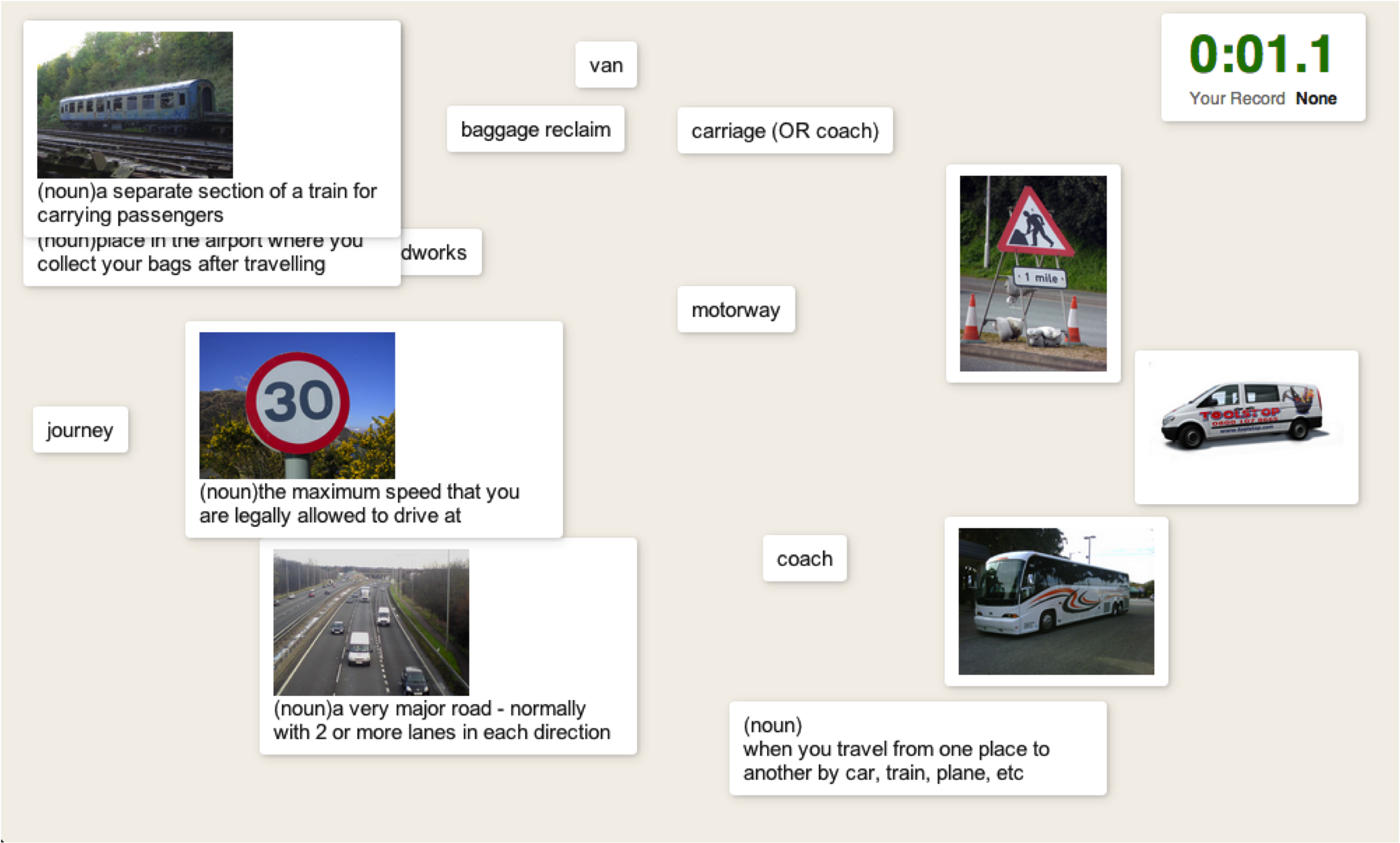
You will see some of the words/phrases from the set you are studying and the matching definitions/pictures:
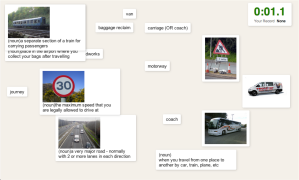
Click on any word/phrase and drop it on to the correct definition/picture. If it is right, the word and the definition will both disappear. You can also drop the definition/picture onto the word/phrase. Which one did I find first?
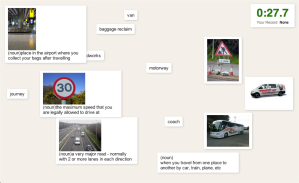
When you have matched all of the vocabulary, you will see your time and the list of fastest times.
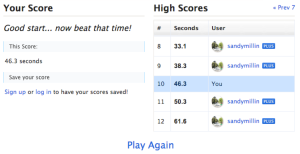
You can click play again and try to be faster.
If you sign up with Quizlet, it will remember your fastest time so that next time you log in you can try to be faster.
When you are ready to play another game, click ‘Back to Set’.
Top
Play a typing game
Click on ‘Space Race’ on the set page or at the top of the page.
Click ‘Start Playing’:
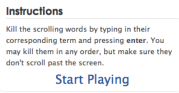
You will see a definition/picture. Write the matching word/phrase into the box at the bottom of the page and hit return/enter on your keyboard. If you are right the definition/picture will disappear. If you are wrong, it won’t, so keep trying!

If you really don’t know a word/phrase, you will see a box with the correct answer for you to copy. You will also lose a life in the bottom right corner:
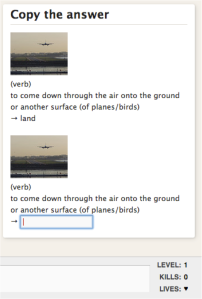
For every word/phrase you write correctly, you will get points and go up levels, as well as gaining extra lives. As you go up through the levels the pictures move faster, so you have to type more quickly.
Don’t worry if you’re a slow typer though: the computer learns this and will go more slowly on level 1 to give you more time to write.
When you have lost all of your lives, you will see the high score board. If you want to see your name on it, you need to sign up with Quizlet.
Top
With Facebook or Google
If you use Facebook or Google and don’t mind attaching them to other websites, joining is very easy.
Click ‘Sign up’ in the top-right corner.
Then choose ‘Sign up with Google/Facebook’.

For facebook, complete your information in the pop-up window, then click ‘Allow’ in the next box which appears.
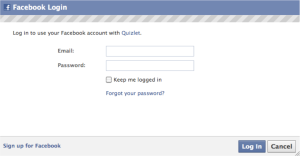
For Google, choose your account, then follow the instructions.
Without facebook or Google
Click ‘Sign Up’ in the top-right corner.
Complete the information in the boxes and click ‘Sign Up’:

The next page will tell you about the difference between free Quizlet, Quizlet Plus and Quizlet Teacher. Everything I have shown you on this post can be used on free Quizlet. You need to pay if you want to use your own pictures to make flashcards, if you don’t want to see advertising while you are using the site or if you want to record your voice. If you don’t want to pay, click the big green ‘Start using Free Quizlet’ button.

Top
Your homepage
Once you have joined the site, your homepage will show you all of the sets which you have studied in the past or which you have created yourself. To return to it, click your username at any time (in the top right corner):

You can click on the name of any set to see the set page again.
Top
Your progress
Once you have an account, Quizlet will remember what you have studied. You can click on ‘Your Progress’ on the set page to see what you have done.

You can also see which words are difficult for you. In this example, these five words are often a problem for me. For example, when writing (learn/speller/test/space race) I got ‘baggage reclaim’ right 5 times and wrong 2 times.
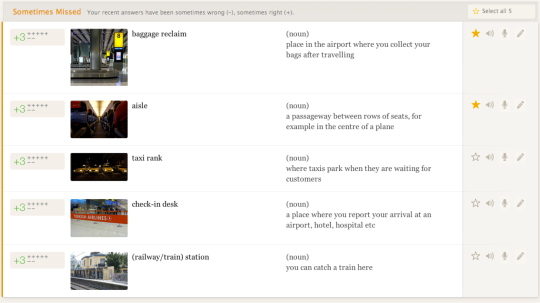
I have clicked the star next to ‘baggage reclaim’ and ‘aisle’ because these are the most difficult. I can click ‘Select these 5’ to put a star next to all of these words.

I can now use any of the modes (flashcards, learn, speller, test, scatter, space race) with all of the words, or just with the difficult (starred) words. When I use all the words, everything will be blue.
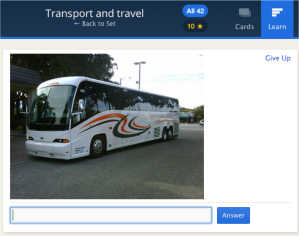
When I just have the starred words, everything will be yellow.
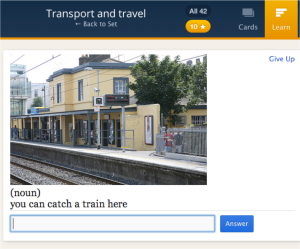
To see if you are the best person in the group, you can click on Scores. It tells you who has finished ‘Learn’ and ‘Speller’ modes, who has the best times in Scatter, and who has the highest scores in ‘Space race’.

Top
Classes
To help you out, I have created groups of flashcards (‘classes’) for different levels of English learners. All of these groups contain only English, sometimes with pictures to help you understand the words.
I also have groups for:
After you have joined Quizlet, you can click on any of the classes above to go to the group page. If you want to, you can click ‘Join Class’ on the right to get emails every time I add flashcards to the set.

Top
Make your own flashcards
Finally, and perhaps most importantly, this is how you make your own flashcards…
Click ‘Create a Set’ at the top of the page:

This is what you will see:
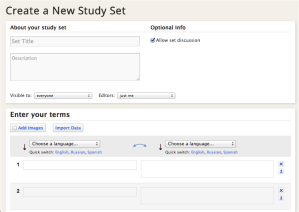
Write a title and a description for your set.

Choose a language for each side of your flashcards. Of course, the language on both sides should be English 😉 but you could put translations in the definition box if you feel you need to.

Next, add some words and definitions. If you can’t think of a definition, click ‘auto-define’ and the computer will help you. You could also look at an online dictionary. If you have more than 5 words, click on the ‘Add Row’ text or press the ‘tab’ (->|) button on your keyboard and it will give you more boxes.
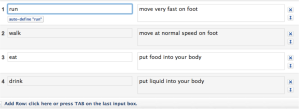
Sometimes, definitions aren’t the best way to learn a word – my definitions in the picture above aren’t great! Tick the box next to ‘Add Images’ then click ‘Search Images’:
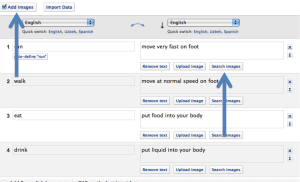
Quizlet searches Flickr to find pictures which match the word you typed in the first box. Sometimes these are suitable, sometimes not, so you might have to type different words in the search box to find a suitable picture. Hover (point but don’t click) over an image to see a preview. When you see a picture you like, click it.
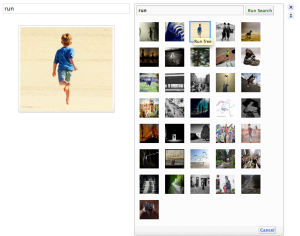
It will then appear above your definition, like this:

When you have added all of the text and images you need, click ‘Save’ at the bottom of the page:

You now have a set with all of the words you want to learn:

If you want to correct a mistake or add more words later, you can easily do this in two ways. At the top of the set page, click on ‘Edit’:

OR Go to the bottom of the page and click ‘Add or remove terms’:

Both of these links will take you to the same page where you made the flashcards.
Top
Go mobile!
If you have a smartphone or a tablet computer you can download apps to help you practise words on Quizlet. Go to the bottom of any set page. Then click on ‘iPhone/iPad’ or ‘Android’ to go to the app stores and download the app.
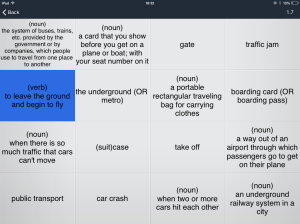
The apps are a bit different to the main website, but very similar. I haven’t used the Android version, but on the iVersion, the main difference is ‘Scatter’, which is also known as ‘Match’ and looks like this:
I hope you enjoy using Quizlet and find this guide useful!
(As of February 2017!)






















 Independent English
Written by Sandy Millin
2 Comments